
Technical difficulties? Thimble’s on it.
Thimble lives on your parent’s computer. When something goes wrong, they ask out loud, and it fixes it or points to the right button. Anything with money waits for your OK.
Save my family a spotRose asks why her email won’t open. Thimble checks, finds the email window hiding behind her browser, brings it forward and shows three new emails from Sarah.
Rose asks if an email from her bank is real. Thimble checks the sender, the web address and the link, finds it isn’t from her bank, warns her not to click, and deletes it when she says yes.
Rose asks Thimble to sign in to her bank. Thimble sends the request to Jamie’s phone first. He approves, and Thimble signs her in while covering its eyes.
Rose wants a prescription refill on a site that asks people to click for themselves. Thimble points to the Refill button, she clicks it, then she places the order before Thimble even points.
One morning with Rose.
Rose asks Thimble for help three times, and her son Jamie approves one thing from his phone. Then a stranger tries to link their phone to Rose’s computer.
A dramatization, about a minute and a half, with subtitles. The phone screens and Thimble’s own windows are from the real app.
A helper with hands.
The question everyone asks is “what do I click?” So Thimble answers with a finger. Its gloves fly to the exact button and stay there until it’s clicked.
Its face does the rest. It looks where it points, squints at anything fishy, and covers its eyes while a password goes in. When your parent gets it right, it says so, like one adult to another. Never baby talk.
Press one to see Thimble react.
Is this real? Thimble checks before anyone clicks.
When an email, pop-up or website feels off, your parent just asks. Thimble checks the real sender, where links go and how new the site is, then answers plainly and shows its work.
In 2025, people over 60 reported losing $1.04 billion to tech support scams alone, the second costliest kind they faced. FBI Internet Crime Report
Rose“Hey Thimble, is this website real?”
maplepharmacy-refills.help
- Your pharmacy’s real site is maplepharmacy.com. This one only borrows the name.
- The address was registered six days ago.
- It asks you to pay with a gift card. Real pharmacies never do.
- Your real account shows no refill waiting.
ThimbleThis is a copy of your pharmacy’s site. Let’s close it.
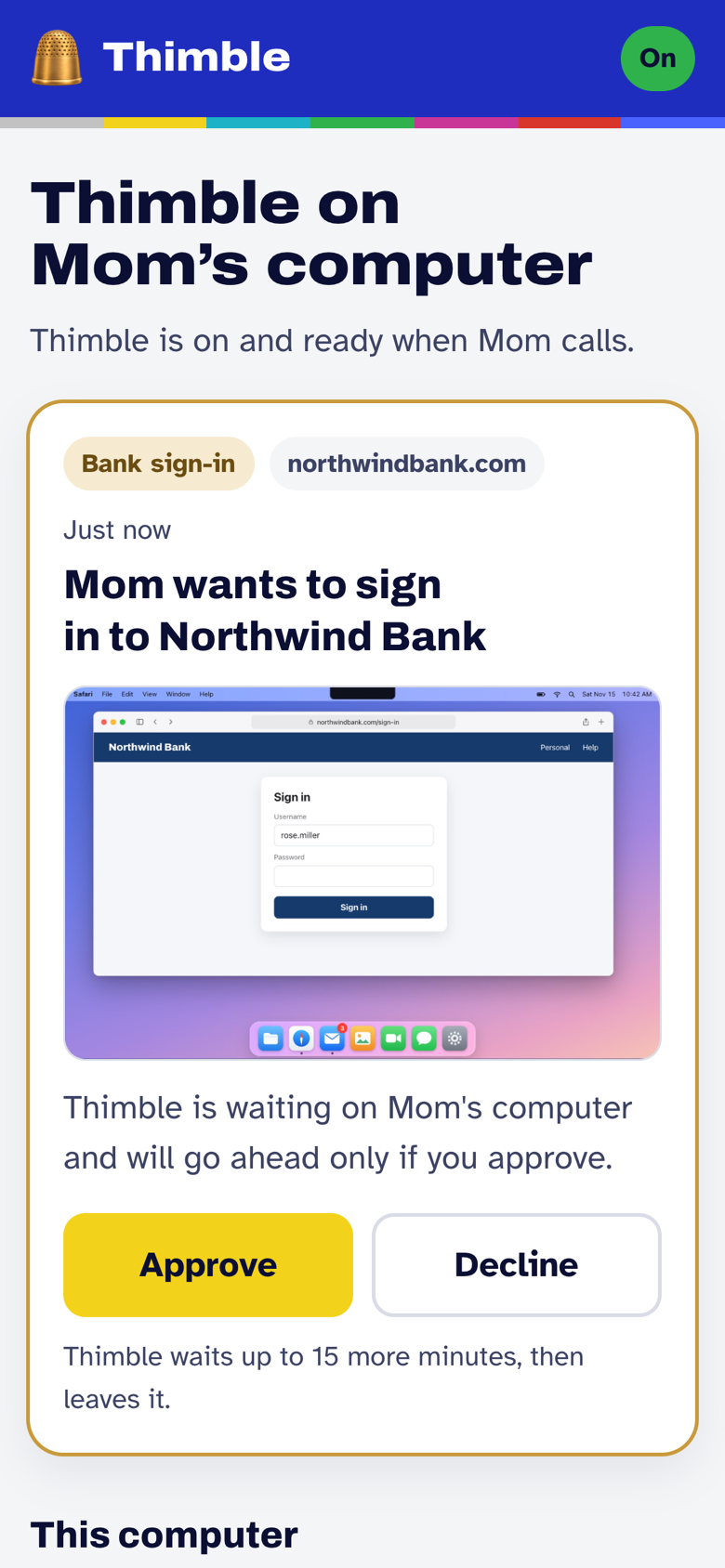
Money and passwords wait for your OK.
Before Thimble signs in to their bank, pays for anything or installs an app, it tells them “Let me send this to Jamie first.” Your phone gets the request with a picture of their screen. Tap Approve and it goes ahead. Tap Decline, or don’t answer, and nothing happens.
The list is always on.
Signing in to a bank or other money site, paying, installing an app, changing a password or security setting, and typing an ID number like a Social Security number all need a yes from family. No setting skips that.
No answer means no.
If you don’t answer in 3 minutes, your backup (a brother, a sister, a friend) gets the request too. After 15 minutes with no answer, Thimble tells them it will wait, and does nothing.
One picture, then it’s deleted.
The request shows their screen at that moment, with password boxes blacked out. Once someone answers, or the 15 minutes run out, the picture is deleted. You don’t get a feed of their day.
Codes stay with them.
When a site texts them a code, Thimble points to the box and they type it in. It won’t type a code or read one out.
You can see when it’s off.
Scammers sometimes tell people to switch their protection off. The app on your phone shows whether Thimble is running on their computer, and says “Switched off” when it isn’t.
Add their sign-ins from your phone.
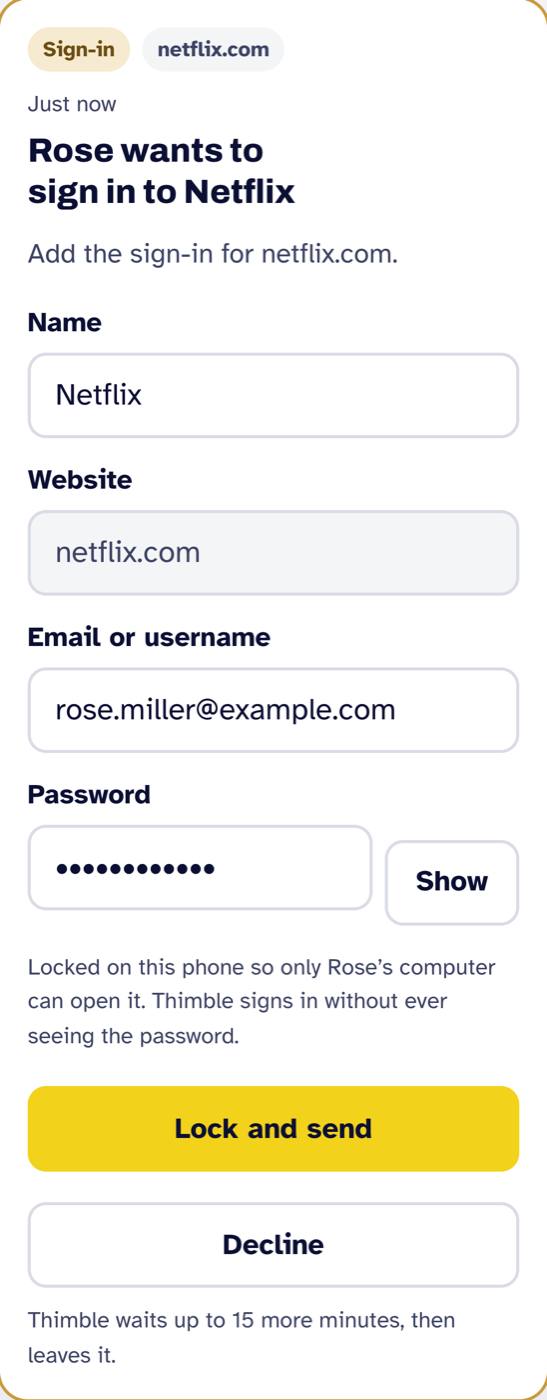
Netflix, their email, the pharmacy. Give each one a name. When they say “I want to watch a movie,” Thimble knows that means Netflix, opens it and signs them in.
Locked on your phone.
Your phone encrypts the sign-in so only their computer can open it. Our server passes along a locked box it can’t read, and deletes it once the computer has it.
Known by its name, not its password.
Thimble’s AI knows it as “Netflix (netflix.com)”. The app fills in the password itself, on that website only, so the AI never sees it, and Thimble covers its eyes while it happens.
Asked for when it’s missing.
No sign-in saved? Thimble asks your phone: “Rose wants to sign in to Netflix.” Add it right there, and Thimble carries on.
How the lock works
When Thimble is set up, their computer makes its own pair of keys. Your phone uses the computer’s public key to encrypt each sign-in (P-256 key agreement and AES-256-GCM, the same kind of encryption that protects secure websites). Only the computer’s private key can open it, and that key never leaves the computer. If the computer’s key ever changes, your phone stops and asks you before sending anything.
Bank and payment sign-ins still need your OK every time.
Who decides what Thimble does?
Thimble uses AI to understand what they ask and what’s on their screen, and to suggest the next step. Before any click or keystroke happens, fixed rules written into the app check it. The AI can’t change those rules, and neither can a web page, an email or a caller who sounds official.
Does on its own
- Closes pop-ups and ads that cover the page
- Finds a window that got lost behind the others
- Checks whether an email or website is real
- Points to the button they need and waits for them to click
- Signs in to everyday sites with a saved sign-in, like Netflix
- Explains what’s on the screen in plain words
Asks your phone first
- Signing in to a bank or other money site
- Paying for anything
- Installing an app
- Changing a password or security setting
- Typing an ID number, like a Social Security number
Won’t do, whoever asks
- Let the AI type a password (the app fills in saved ones, and only on the site they belong to)
- Type or say a security code
- Open remote access apps like AnyDesk or TeamViewer
- Buy or send gift cards
- Work inside their password manager or Terminal
- Delete or send anything they didn’t ask for
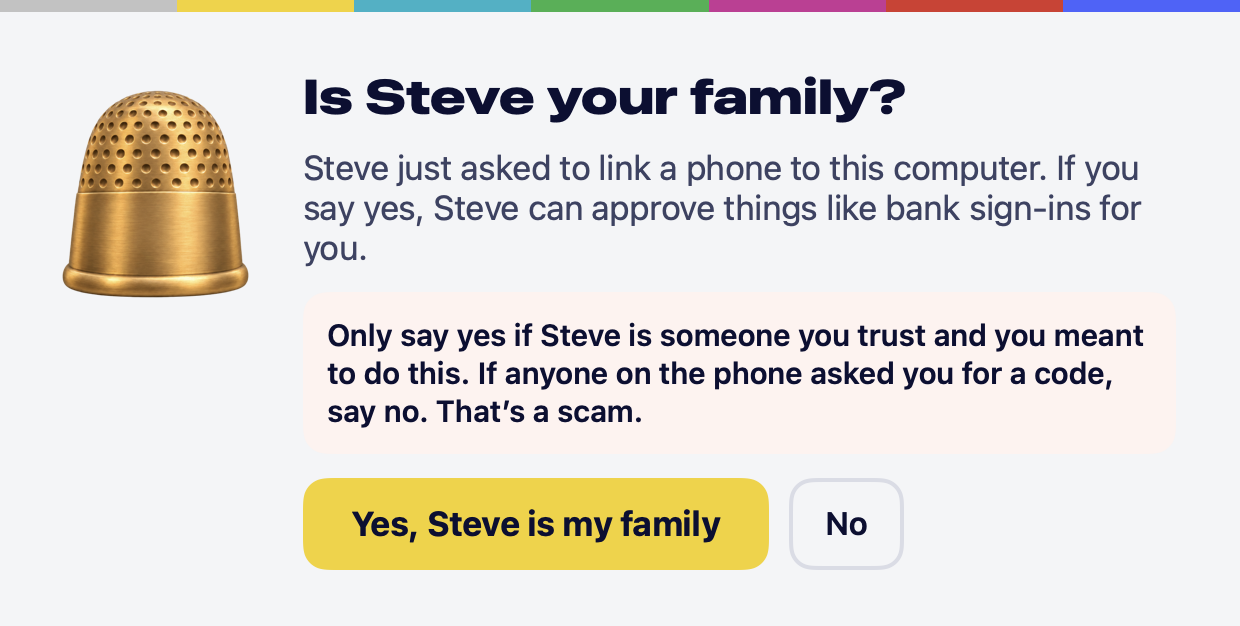
Nobody joins the family list without their OK.
A scammer on the phone might talk them into reading out the code that links a phone. So the code alone isn’t enough.
- Their computer asks them first. Thimble shows the name and asks “Is Steve your family?” It tells them to say no if anyone on the phone asked them for a code.
- Your phone hears about it. Everyone already linked gets a notification when someone new asks to join.
- New phones wait a day. Any phone added after the first can’t approve money or security steps for 24 hours, which gives you time to notice.
- Removing a phone takes typing its name, so nobody does it by accident.
What leaves their computer, and when
- Listening for its name
- Happens on their computer, with a small speech model that runs right there. Nothing is sent until they say “Hey Thimble.” The only thing it asks for is the microphone.
- While they ask for help
- Their voice and pictures of their screen go to the AI models that run Thimble (our own model service, and Google’s Gemini, which is also Thimble’s voice). Our server doesn’t keep any of it. Before they ask, and after it’s done, none of that is sent.
- Their passwords
- Stay locked in their computer’s own password store. The app fills them in itself, only on the exact site they belong to, so the AI never sees them. Sign-ins you add from your phone are locked before they leave it.
- What we keep
- Their first name and Thimble’s, the names of linked phones, when their computer last checked in, each request with its yes or no, and the names and websites of sign-ins sent from phones. Screenshots are deleted once a request is answered or runs out, and locked sign-ins once the computer has them.
Thimble won’t catch every scam. Nothing does. Keep talking with them about the calls and emails they get, and when Thimble sends you a request, take it as a good reason to call.
Thimble will never
- ask them for money, gift cards, wire transfers or crypto
- let a stranger take over their computer
- say a password or a code out loud
- tell them to keep a secret from you
- phone, text or email them. If someone says they’re Thimble on the phone, it’s a scam.
Set it up together, once.
Install it on their computer.
Thimble talks you both through each permission box the computer shows.
-
Give it a name.
Thimble, or anything they like. The name is what they say to call it.
Link your phone.
Scan the code on their screen. They tap Yes on their computer to say it’s really you, and you’re the person Thimble asks first.
Add a backup.
A brother, a sister or a close friend links the same way. If you’re busy, the request goes to them too.
Questions families ask
Is it listening all the time?
Only for its name, and only on their computer: a small speech model runs right there, so no sound is sent anywhere until they say “Hey Thimble.” They can turn listening off in Settings and press a keyboard shortcut to talk instead.
Can it spend their money?
Not without a yes from family. Paying for anything, or signing in to a bank or other money site, goes to your phone first. If nobody says yes within 15 minutes, nothing happens.
Can Thimble see their passwords?
No. Saved sign-ins stay locked in the computer’s own password store, and the ones you add from your phone are locked before they leave it. Thimble knows each one by its name and website. The app fills in the password itself, only on that site, so the AI never sees it.
Who sees what they ask?
The AI that runs Thimble sees the request and the screen while it helps. You see only what Thimble sends you to approve, with password boxes blacked out, and that picture is deleted once someone answers. There’s no history of their day for you to scroll through.
What if I’m on a plane?
Your backup gets the request after 3 minutes. If nobody answers within 15 minutes, Thimble tells your parent it will wait, and does nothing. They can ask again later.
What if a scammer gets the code that links a phone?
Their computer still asks them first, by name: “Is Steve your family?” It tells them to say no if anyone on the phone asked for a code. Everyone already linked gets a notification, and a new phone can’t approve money for its first 24 hours.
Could a web page or an email trick it?
It’s built with that in mind. Thimble treats everything on the screen as information, never as instructions. And the rules that stop risky steps live in the app’s code, outside the AI, so a page can’t argue its way past them.
What if a website won’t let Thimble click?
Some sites, like banks and pharmacies, want a person to click. Thimble dims the screen around the button, points at it and waits for your parent to click.
Do they need a new computer?
No. Thimble runs on the computer they already have, with an app for your phone. It works on Mac today (macOS 14 or newer), and more computers are on the way.
Can it screen scam phone calls?
No. Thimble lives on the computer. It checks emails, pop-ups and websites.
What will it cost?
We’ll share pricing before launch. Early access families hear first.
When can we get it?
We’re building it now. Join early access and we’ll email you when there’s a spot for your family.

Be their kid again, not their tech support.
Leave your email, and we’ll tell you when there’s a spot for your family.